


CE Detail View
Overview
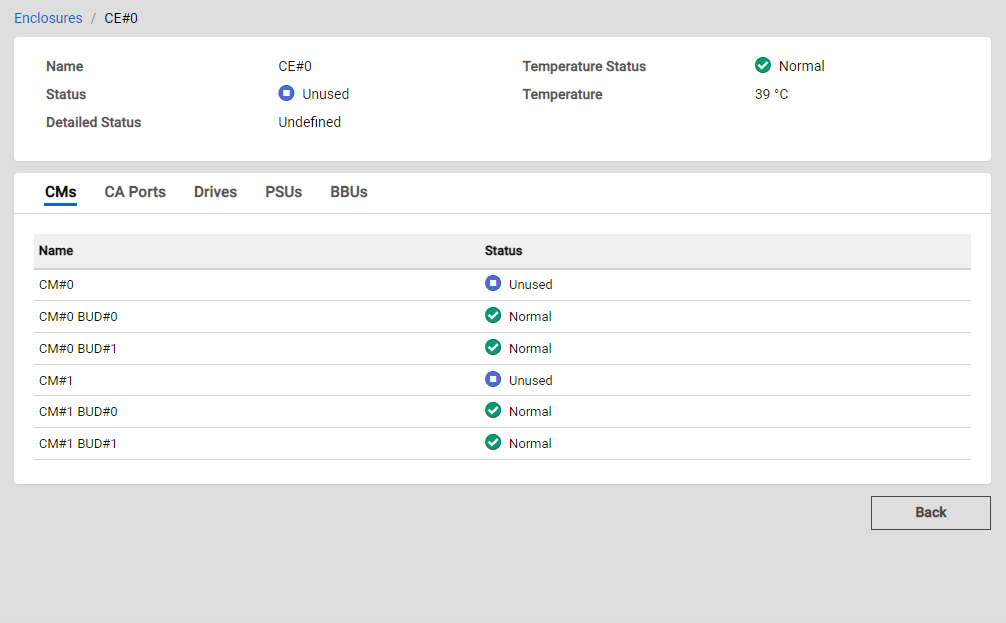
The detailed Controller Enclosure information is displayed.
Screenshots
Actions
| Icon/Button | Description |
|---|---|
Back |
Displays the previous screen. Caution
|
Enclosures / xxx |
Click "Enclosures" to display its List View. "xxx" indicates the name of the currently displayed enclosure. |
CA Port Information / Drive Information
| Icon/Button | Description |
|---|---|
|
< > X - Y of Z |
Changes the List page. Click the left arrow icon to return to the previous page. Click the right arrow icon to proceed to the next page. The location of the currently displayed resource and the total number of resources are also displayed. X: The start point of the currently displayed list element. Y: The end point of the currently displayed list element. Z: The total number of elements. |
Display Items
Basic Information
| Parameter Name | Description |
|---|---|
Name |
The enclosure name is displayed. |
Status |
The enclosure status is displayed.
|
Detailed Status |
The detailed enclosure status is displayed.
|
Temperature Status |
The ambient temperature status is displayed.
|
Temperature |
The ambient temperature is displayed. The unit is "°C". Information
|
CM Information
| Parameter Name | Description |
|---|---|
Name |
The component name is displayed. |
Status |
The component status is displayed.
|
CA Port Information
| Parameter Name | Description |
|---|---|
Name |
The CA port name is displayed. Click a CA port name to display its Detail View. |
Status |
The CA port status is displayed.
|
Type |
The interface type of the CA port is displayed.
|
Link Speed |
The link status of the CA port is displayed. The unit is "Gbps". Information
|
Drive Information
| Parameter Name | Description |
|---|---|
Name |
The drive name is displayed. Click a drive name to display its Detail View. |
Status |
The drive status is displayed.
|
Capacity |
The capacity of the drive is displayed. The capacity is displayed up to the second decimal place with the appropriate "GB" or "TB" unit. It may differ from the product's actual capacity. |
Allocated Resource |
The name of the Thin Provisioning Pool, Flexible Tier Pool, or RAID group that is configured by the drive is displayed. For Dedicated Hot Spares, the RAID group name where the Dedicated Hot Spare is registered is displayed. For Thin Provisioning Pools, click a pool name to display its Detail View. Information
|
PSU Information
| Parameter Name | Description |
|---|---|
Name |
The PSU name is displayed. |
Status |
The PSU status is displayed.
|
BBU Information
| Parameter Name | Description |
|---|---|
Name |
The BBU name is displayed. |
Status |
The BBU status is displayed.
|
Charge Rate |
The BBU charge level is displayed in a band chart. In addition, the charge level (%) is displayed next to the band chart. When the charge level is 90% or more, "100" is displayed. |
Expiration Date |
The BBU expiration date is displayed. The display format is "YYYY-MM". YYYY: Year (AD) MM: Month (01 - 12) |
Filters
CA Port Information
| Parameter Name | Description |
|---|---|
Select a CA port status |
Select the status of the CA port that is to be displayed in the list. The CA ports that are in the selected status are displayed in the list. If no statuses are selected, the list will not be filtered by status. No statuses are selected by default.
|
Drive Information
| Parameter Name | Description |
|---|---|
Select a drive status |
Select the status of the drive that is to be displayed in the list. The drives that are in the selected status are displayed in the list. If no statuses are selected, the list will not be filtered by status. No statuses are selected by default.
|