


Drive List View
Overview
The drive information is displayed in list form.
Screenshots
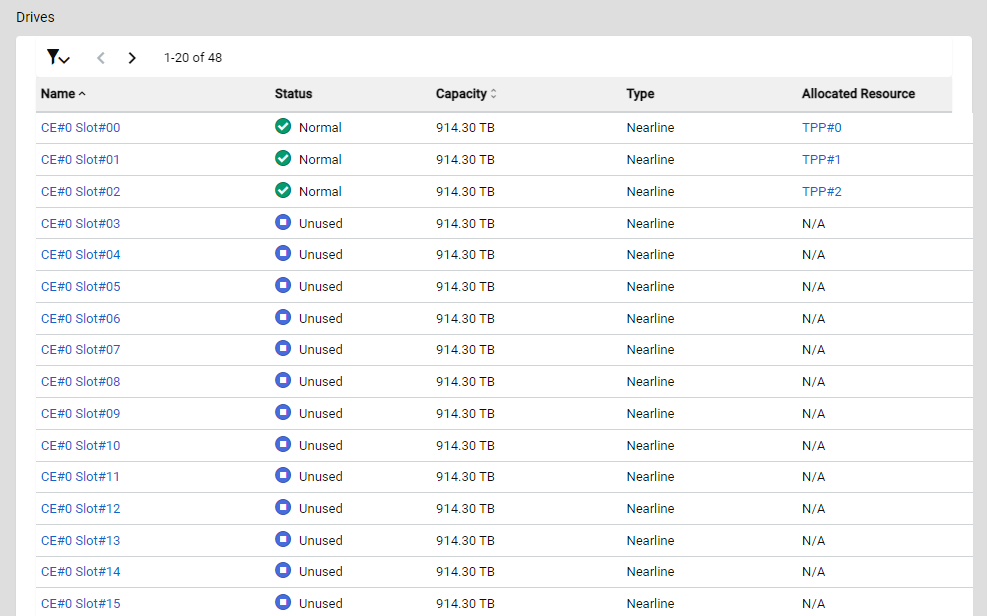
Actions
| Icon/Button | Description |
|---|---|
 |
Opens/closes the filter menu. Click this icon to open the filter menu to filter the display items and display resources of the list. Click this icon again to close the filter menu. The filter menu is closed by default. |
|
< > X - Y of Z |
Changes the List page. Click the left arrow icon to return to the previous page. Click the right arrow icon to proceed to the next page. The location of the currently displayed resource and the total number of resources are also displayed. X: The start point of the currently displayed list element. Y: The end point of the currently displayed list element. Z: The total number of elements. |
Display Items
| Parameter Name | Description |
|---|---|
Name |
The drive name is displayed. Click a drive name to display its Detail View. |
Enclosure |
The enclosure name where the drive is installed is displayed. Click an enclosure name to display its Detail View. |
Status |
The drive status is displayed.
|
Detailed Status |
The detailed drive status is displayed.
|
Health |
The drive lifetime (or remaining life) is displayed. As the lifetime of the drive is reduced, the value is decreased. The unit is "%". Information
|
Capacity |
The capacity of the drive is displayed. The capacity is displayed up to the second decimal place with the appropriate "GB" or "TB" unit. It may differ from the product's actual capacity. |
Type |
The drive type is displayed.
|
Hot Spare |
Whether the drive is registered as a hot spare is displayed.
|
Allocated Resource |
The name of the Thin Provisioning Pool, Flexible Tier Pool, or RAID group that is configured by the drive is displayed. For Dedicated Hot Spares, the RAID group name where the Dedicated Hot Spare is registered is displayed. For Thin Provisioning Pools, click a pool name to display its Detail View. Information
|
Filters
| Parameter Name | Description |
|---|---|
Default Settings |
Reverts the filter menu setting to the default. |
Items per page |
Select the number of resources to display per page in the list. The default number is 20.
|
Enclosure |
Select whether to display the "Enclosure" column in the list. The "Enclosure" column is not displayed by default. This item is also used to select the enclosure where the drive to be displayed in the list is installed. The drives that are installed in the selected enclosure are displayed in the list. If the "Enclosure" checkbox is cleared, the list will not be filtered by enclosure. The "Enclosure" checkbox is cleared by default.
|
Status |
Select whether to display the "Status" column in the list. The "Status" column is displayed by default. This item is also used to select the status of the drive that is to be displayed in the list. The drives that are in the selected status are displayed in the list. If no drive statuses are selected, the list will not be filtered by status. No drive statuses are selected by default.
|
Detailed Status |
Select whether to display the "Detailed Status" column in the list. The "Detailed Status" column is not displayed by default. |
Health |
Select whether to display the "Health" column in the list. The "Health" column is not displayed by default. |
Capacity |
Select whether to display the "Capacity" column in the list. The "Capacity" column is displayed by default. This item is also used to specify the threshold of the drive capacity that is to be displayed in the list. Drives that meet the specified threshold and condition are displayed. The input unit is "GB" or "TB". If no values are specified, the list will not be filtered by capacity. This item is blank by default. Information
|
Type |
Select whether to display the "Type" column in the list. The "Type" column is displayed by default. This item is also used to select the type of the drive that is to be displayed in the list. The drives of the selected type are displayed in the list. If no drive types are selected, the list will not be filtered by drive type. No drive types are selected by default.
|
Hot Spare |
Select whether to display the "Hot Spare" column in the list. The "Hot Spare" column is not displayed by default. This item is also used to select the hot spare registration status of the drive that is to be displayed in the list. Drives whose registration state is the same as the hot spare registration status are displayed in the list. If no hot spare registration statuses are selected, the list will not be filtered by registration status. No hot spare registration statuses are selected by default.
|
Allocated Resource |
Select whether to display the "Allocated Resource" column in the list. The "Allocated Resource" column is displayed by default. This item is also used to specify the resource name configured by the drive that is to be displayed in the list. Information of the drive configuring the resource that partially matches the input resource name is displayed. If no values are specified, the list will not be filtered by the resource name. This item is blank by default. Information
|