


Host Detail View
Overview
The detailed host information is displayed.
Screenshots
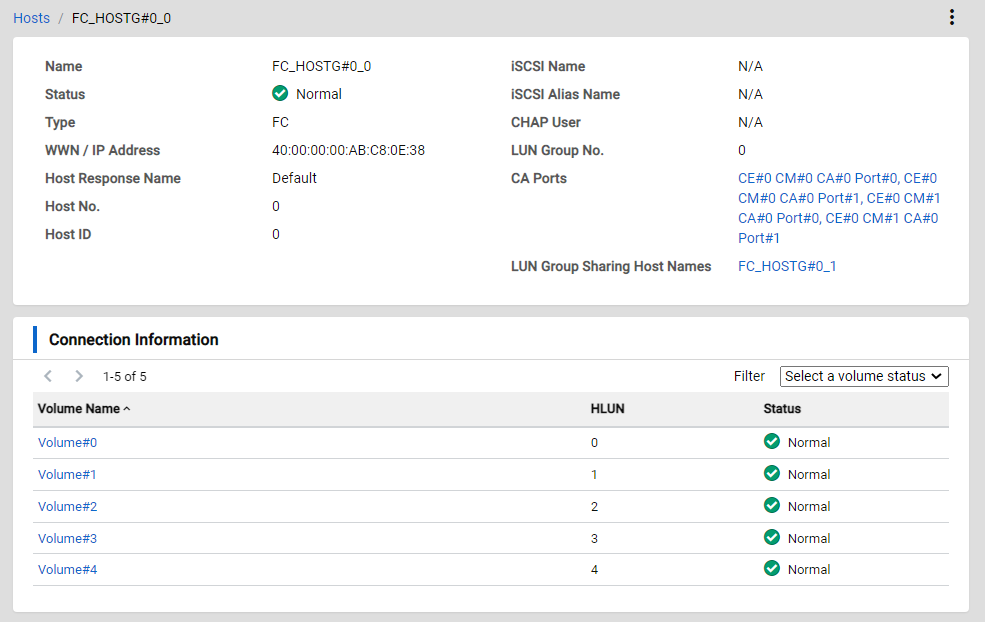
Actions
| Icon/Button | Description |
|---|---|
 |
Opens/closes the action menu of the host. Click this icon to open a menu for the various operations that can be performed for the host.
|
Back |
Displays the previous screen. Caution
|
Hosts / xxx |
Click "Hosts" to display its List View. "xxx" indicates the name of the currently displayed host. |
Connection Information
| Icon/Button | Description |
|---|---|
< > X - Y of Z |
Changes the List page. Click the left arrow icon to return to the previous page. Click the right arrow icon to proceed to the next page. The location of the currently displayed resource and the total number of resources are also displayed. X: The start point of the currently displayed list element. Y: The end point of the currently displayed list element. Z: The total number of elements. |
Display Items
Basic Information
| Parameter Name | Description |
|---|---|
Name |
The host name is displayed. |
Status |
The status of the volume, which is connected to the host, is displayed.
|
Type |
The type of the host is displayed.
|
WWN / IP Address |
The WWN or IP address of the host is displayed. |
Host Response Name |
The host response name, which has been assigned to the host, is displayed. |
Host No. |
The host number is displayed. It is an identifier of the host used for systems such as Web GUI (Normal View) and CLI. |
Host ID |
The host ID is displayed. The host identifier that is used for RESTful API. |
iSCSI Name |
The iSCSI name of the iSCSI host is displayed. Information
|
iSCSI Alias Name |
The iSCSI Alias name of the iSCSI host is displayed. Information
|
CHAP User |
The user name of the iSCSI host used for the CHAP authentication is displayed. Information
|
LUN Group No. |
The LUN group number that is used by the host is displayed. Information
|
CA Ports |
The CA port, which is connected to the host, is displayed. Click a CA port to display its Detail View. Information
|
LUN Group Sharing Host Names |
The host names that share the LUN group are displayed. Click a host name to display its Detail View. Information
|
Connection Information
| Parameter Name | Description |
|---|---|
Volume Name |
The name of the volume, which is connected to the host, is displayed. Click a volume name to display its Detail View. |
HLUN |
The HLUN of the volume is displayed. |
Status |
The volume status is displayed.
|
Filters
Connection Information
| Parameter Name | Description |
|---|---|
Select a volume status |
This item is used to select the status of the volume that is to be displayed in the list. The volumes that are in the selected status are displayed in the list. If no statuses are selected, the list will not be filtered by status. No statuses are selected by default.
|