
Volume Detail View

Overview

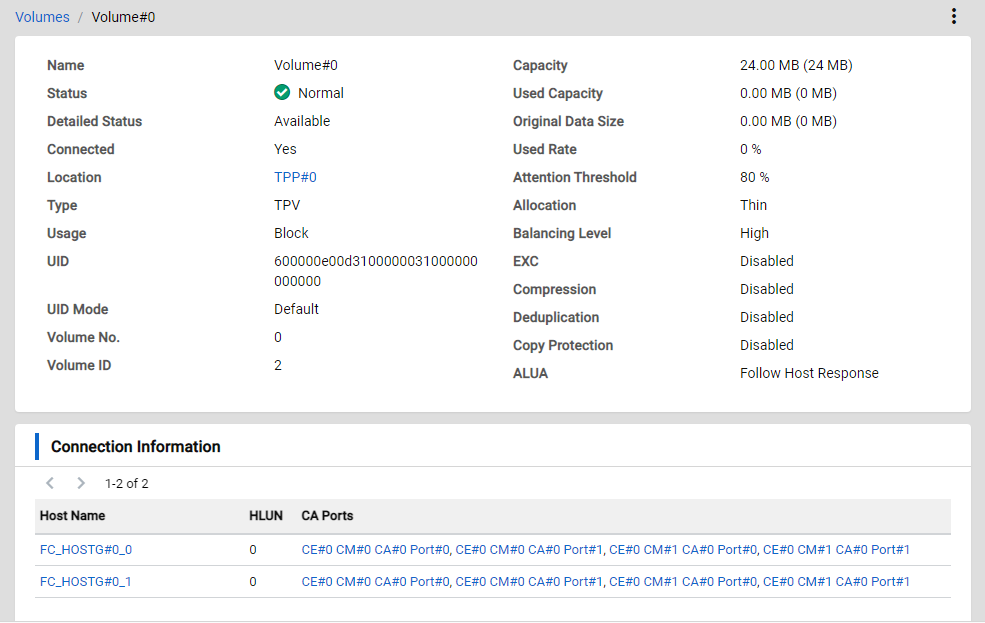
The detailed volume information is displayed.

Screenshots
Actions

Icon/Button Description

Opens/closes the action menu of the volume.

Click this icon to open a menu for the various operations that can be performed for the volume.

  • Modify

    Changes the volume settings.

  • Disconnect

    Disconnects the connections from all the hosts to the volume.

  • Delete

    Deletes volumes.

Back

Displays the previous screen.

Caution
  • To return to the previous screen, use this button instead of the [Back] button on the browser.

    Using the [Back] button on the browser may cause unexpected behavior.

Volumes / xxx

Click "Volumes" to display its List View.

"xxx" indicates the name of the currently displayed volume.

Connection Information

Icon/Button Description

< > X - Y of Z

Changes the List page.

Click the left arrow icon to return to the previous page.

Click the right arrow icon to proceed to the next page.

The location of the currently displayed resource and the total number of resources are also displayed.

X: The start point of the currently displayed list element.

Y: The end point of the currently displayed list element.

Z: The total number of elements.

Display Items

Basic Information

Parameter Name Description

Name

The volume name is displayed.

Status

The volume status is displayed.

  • Normal

    Normal state.

  • Maintenance

    Maintenance state.

  • Warning

    Preventive maintenance is required.

  • Error

    An error occurred and maintenance is required.

Detailed Status

The detailed status of the volume is displayed.

  • Available

    Normal state.

  • Spare In Use

    Redundancy is maintained by using the hot spare drive.

  • Readying

    The volume is not formatted.

  • Rebuild

    A rebuild process is being performed from a failed data drive to the hot spare drive or to the replaced drive.

  • Copyback

    Writing the data stored in the hot spare drive back to the replaced drive.

  • Redundant Copy

    A redundant copy is being performed to the hot spare drive.

  • Partially Exposed Rebuild

    A rebuild is being performed from the first failed data drive to the hot spare drive or to the replaced drive (only for RAID6 and RAID6FR).

  • Exposed Rebuild

    Two drives have failed. A rebuild is being performed from the first failed data drive to the hot spare drive or to the replaced drive (only for RAID6 and RAID6FR).

  • Exposed

    Redundancy has been lost due to drive failure.

  • Partially Exposed

    A drive has failed (only for RAID6 and RAID6FR).

  • Not Ready

    The RAID is blocked.

  • Broken

    Failed state.

  • Data Lost

    Data is lost.

    Reading or writing of data cannot be performed.

Connected

Whether the volume is connected from a host is displayed.

  • Yes

    The volume that is being connected from a host.

  • No

    The unused volume that is not connected from the host.

Location

The name of the Thin Provisioning Pool, Flexible Tier Pool, or RAID group where the volume belongs is displayed.

  • When the volume type is "TPV":

    The Thin Provisioning Pool name is displayed.

  • When the volume type is "FTV":

    The Flexible Tier Pool name is displayed.

  • Other than above:

    The RAID group name is displayed.

For Thin Provisioning Pools, click a pool name to display its Detail View.

Type

The volume type is displayed.

  • Standard

    Volumes that are created in RAID groups or External RAID Groups.

  • TPV

    Thin Provisioning Volume.

    Volumes that are created in Thin Provisioning Pools.

  • FTV

    Flexible Tier Volume.

    Volumes that are created in Flexible Tier Pools.

    This volume is used as the target volume of the Automated Storage Tiering function.

  • WSV

    Wide Striping Volume.

    Volumes that are used to distribute data in multiple RAID groups.

  • SDV

    Snap Data Volume.

    Volumes that are used as copy destination volumes for SnapOPC or SnapOPC+.

  • SDPV

    Snap Data Pool Volume.

    Volumes that are used to configure Snap Data Pools.

  • Temporary

    Work volumes that are temporarily created.

    This volume is created only when expanding the Standard volume capacity.

Usage

The usage of the volume is displayed.

  • Block

    Volumes that are used for the SAN.

  • File

    Volumes that are used for the NAS.

  • System

    Volumes that are used for internal control.

  • Migration

    Volumes that are being used for Non-disruptive Storage Migration.

  • VVOL

    Volumes that are used as virtual volumes.

  • Veeam

    Volumes that are used for Veeam Storage Integration.

  • ODX

    Volumes that are used for Offloaded Data Transfer.

UID

The Universal Identifier (UID) of the volume is displayed.

The UID is an identifier (device name) to specify a volume from the server.

UID Mode

The UID status of the volume is displayed.

  • Default

    The default UID that was assigned when the volume was created is set.

  • Custom

    The UID is changed after the volume has been created.

  • External

    The volume information of the migration source volume has been inherited by Non-disruptive Storage Migration.

Volume No.

The volume number is displayed.

The volume identifier that is used for systems such as Web GUI (Normal View) and CLI.

Volume ID

The volume ID is displayed.

The volume identifier that is used for RESTful API.

Capacity

The volume capacity is displayed.

The capacity is displayed up to the second decimal place with the appropriate "MB", "GB", "TB", or "PB" unit.

In addition, the capacity in units of MB is displayed next to the capacity.

Used Capacity

The physically allocated capacity of volume is displayed.

The capacity is displayed up to the second decimal place with the appropriate "MB", "GB", "TB", or "PB" unit.

In addition, the capacity in units of MB is displayed next to the capacity.

Information
  • "N/A" is displayed for the following cases.

    • When the volume type is other than "TPV" or "FTV"

    • When the volume is the Data Reduction (Deduplication and/or Compression) target volume

Original Data Size

The data size written to the volume is displayed.

  • For volumes where Deduplication or Compression is enabled

    This item indicates the data size before a reduction by Compression or Deduplication.

  • For volumes where Deduplication or Compression is disabled

    The value matches the Used Capacity.

The capacity is displayed up to the second decimal place with the appropriate "MB", "GB", "TB", or "PB" unit.

In addition, the capacity in units of MB is displayed next to the data size.

Information
  • "N/A" is displayed for the following cases.

    • When the volume type is other than "TPV" or "FTV"

    • When the "System Usage" is "System"

  • If the information cannot be obtained due to a system failure, "0" may be displayed.

Used Rate

The ratio of the physically allocated capacity to the volume capacity is displayed.

The unit is "%".

Information
  • "N/A" is displayed when the volume type is other than "TPV" or "FTV".

  • If the information cannot be obtained due to a system failure, "0" may be displayed.

Attention Threshold

The Used Rate threshold that triggers the volume host sense is displayed.

The unit is "%".

Information
  • "N/A" is displayed for the following cases.

    • When the volume type is other than "TPV" or "FTV"

    • When the volumes are used as Data Container Volumes

Allocation

The allocation method for the volume is displayed.

  • Thick

    Physical area is allocated to the whole area of the volume when volumes are created.

  • Thin

    Physical area is allocated to the target area of the volume when a write I/O is received.

Information
  • "N/A" is displayed when the volume type is other than "TPV" or "FTV".

Balancing Level

The balancing level of the volume is displayed.

The balancing level of the physically allocated capacity of the RAID group that configures the Thin Provisioning Pool is displayed.

  • High

    The physically allocated capacity is equalized.

  • Medium

    The physically allocated capacity is slightly unequal.

  • Low

    The physically allocated capacity is significantly unequal.

Information
  • "N/A" is displayed when the volume type is other than "TPV".

EXC

Whether the volume is an Extreme Cache target volume or an Extreme Cache Pool target volume is displayed.

  • Enabled

    The volume is an Extreme Cache (or Extreme Cache Pool) target volume.

  • Disabled

    The volume is not an Extreme Cache (or Extreme Cache Pool) target volume.

Compression

Whether the Compression function is enabled is displayed.

  • Enabled

    Compression is performed for the data written to the volumes.

  • Disabled

    Compression is not performed for the data written to the volumes.

Deduplication

Whether the Deduplication function is enabled is displayed.

  • Enabled

    Deduplication is performed for the data written to the volumes.

  • Disabled

    Deduplication is not performed for the data written to the volumes.

Copy Protection

Whether the volume is a copy protection target is displayed.

  • Enabled

    The volume cannot be used as a copy destination volume.

  • Disabled

    The volume can be used as a copy destination volume.

ALUA

The Asymmetric Logical Unit Access (ALUA) setting is displayed.

  • Follow Host Response

    Use the same ALUA setting as the host response.

  • ACTIVE ACTIVE

    The ALUA setting (ACTIVE / ACTIVE) is returned regardless of the host response setting.

  • ACTIVE-ACTIVE PREFERRED PATH

    The ALUA setting (ACTIVE-ACTIVE / PREFERRED PATH) is returned regardless of the host response setting.

Information
  • "N/A" is displayed for volumes that cannot be connected to the host. The following shows the volumes that cannot be connected to the host.

    • Volumes whose "Usage" is "System"

    • Volumes whose "Usage" is "VVOL" or "ODX"

    • SDPVs

    • Temporary volumes

Connection Information

Parameter Name Description

Host Name

The name of the host that is connected to the relevant volume is displayed.

Click a host name to display its Detail View.

HLUN

The HLUN of the volume is displayed.

CA Ports

The name of the CA port that can be used to reference the corresponding volume from the host is displayed.

Click a CA port name to display its Detail View.