
ONTAP 9 Manuals ( CA08871-402 )
Release notes
Introduction and concepts
Learn about ONTAP
Integrate ONTAP System Manager with NetApp console
Disks and local tiers
Volumes, qtrees, files, and LUNs
Storage virtualization
Replication
SnapMirror disaster recovery and data transfer
SnapMirror Cloud backups to object Storage
Set up, upgrade and revert ONTAP
Set up an ONTAP cluster
Create an a cluster and join nodes
Upgrade ONTAP
Prepare for an ONTAP upgrade
Determine how long an upgrade will take
Verify LIF failover configuration
Download the ONTAP software image
ONTAP upgrade methods
What to do after an ONTAP upgrade
Summary of post-upgrade verifications
Verify all LIFs are on home ports
Special configurations
Summary of post-upgrade special configurations
Firmware, system, and security updates
Revert ONTAP
Prepare for an ONTAP revert
Resources to review before a revert
Perform ONTAP version specific pre-revert checks
Any ONTAP 9 version
SnapMirror/SnapVault relationships
Automatic unplanned switchover for MetroCluster configurations
ONTAP 9.17.1
ONTAP 9.14.1
ONTAP 9.11.1
Cluster administration
Cluster management with ONTAP System Manager
Use ONTAP System Manager to access a Cluster
Download a cluster configuration
Manage maximum capacity limit of a storage VM
Monitor capacity with ONTAP System Manager
License management
Cluster management with the CLI
Cluster and SVM administrators
Manage access to ONTAP System Manager
Access the cluster by using the CLI (cluster administrators only)
Access the cluster by using the serial port
Enable Telnet or RSH access to the cluster
Use the ONTAP command-line interface
Different shells for CLI commands (cluster administrators only)
Methods of navigating CLI command directories
Rules for specifying values in the CLI
Methods of viewing command history and reissuing commands
Keyboard shortcuts for editing CLI commands
Use of administrative privilege levels
Set the privilege level in the CLI
Set display preferences in the CLI
Methods of using query operators
Methods of using extended queries
Manage CLI sessions (cluster administrators only)
Cluster management (cluster administrators only)
Display information about the nodes in a cluster
Manage nodes
Access a node’s log, core dump, and MIB files by using a web browser
Access the system console of a node
Manage node root volumes and root aggregates
Configure the SP/BMC network
Isolate management network traffic
Considerations for the SP/BMC network configuration
Enable the SP/BMC automatic network configuration
Manage nodes remotely using the SP/BMC
About the Service Processor (SP)
About the Baseboard Management Controller (BMC)
Methods of managing SP/BMC firmware updates
When the SP/BMC uses the network interface for firmware updates
Accounts that can access the SP
Access the SP/BMC from an administration host
Access the SP/BMC from the system console
Relationship among the SP CLI, SP console, and system console sessions
Manage the IP addresses that can access the SP
Use online help at the SP/BMC CLI
Commands to manage a node remotely
About the threshold-based SP sensor readings and status values of the system sensors command output
About the discrete SP sensor status values of the system sensors command output
Commands for managing the SP from ONTAP
Manage the cluster time (cluster administrators only)
Manage the banner and MOTD
Back up and restore cluster configurations (cluster administrators only)
What configuration backup files are
How the node and cluster configurations are backed up automatically
Commands for managing configuration backup schedules
Commands for managing configuration backup files
Find a configuration backup file to use for recovering a node
Restore the node configuration using a configuration backup file
Find a configuration to use for recovering a cluster
Restore a cluster configuration from an existing configuration
Disk and tier management
Manage local tiers
Learn about ONTAP local tier management
Add (create) a local tier
Determine the number of disks or disk partitions required for a local tier
Decide which local tier creation method to use
Add (create) local tiers automatically
Manage the use of local tiers
Set media cost of a local tier
Manually assign disk ownership
Determine drive and RAID group information for a local tier
Assign local tiers to storage VMs (SVMs)
Determine which volumes reside on a local tier
Determine and control a volume’s space usage in a local tier
Determine space usage in a local tier
Relocate local tier ownership within an HA pair
Manage disks
How low spare warnings can help you manage your spare disks
Additional root-data partitioning management options
Learn when to update the Disk Qualification Package
Disk and partition ownership
Manage the ownership of disks and partitions
Learn about auto-assignment of disk ownership
Display disk and partition ownership
Change auto-assignment settings for disk ownership
Manually assign ownership of unpartitioned disks
Manually assign ownership of partitioned disks
Set up an active-passive configuration on nodes using root-data partitioning
Set up an active-passive configuration on nodes using root-data-data partitioning
Disk sanitization
When sanitization cannot be performed
What happens if sanitization is interrupted
Tips for managing local tiers containing data to be sanitized
Manage RAID configurations
Default RAID policies for local tiers
RAID protection levels for disks
Drive and RAID group information for a local tier
Convert from RAID-DP to RAID-TEC
Manage Flash Pool local tiers
Flash Pool local tier caching policies
Manage Flash Pool caching policies
Determine whether to modify the caching policy of Flash Pool local tiers
Flash Pool SSD partitioning for Flash Pool local tiers using storage pools
Flash Pool candidacy and optimal cache size
Create a Flash Pool local tier using physical SSDs
Create a Flash Pool local tier using SSD storage pools
Determine whether a Flash Pool local tier is using an SSD storage pool
Add cache by adding an SSD storage pool
Create a Flash Pool using SSD storage pool allocation units
Determine the impact on cache size when SSDs are added to an SSD storage pool
FabricPool tier management
Requirements for using ONTAP FabricPool
Tier data efficiently with FabricPool policies
Learn about FabricPool configuration and management tasks
Configure FabricPool
Prepare for FabricPool configuration
Install a FabricPool license on an cluster
Install a CA certificate on an cluster for StorageGRID
Install a CA certificate on a cluster for S3
Set up an object store as the cloud tier for FabricPool
Set up StorageGRID as the FabricPool cloud tier
Set up S3 as the FabricPool cloud tier
Set up Alibaba Cloud Object Storage as the FabricPool cloud tier
Set up Amazon S3 as the FabricPool cloud tier
Set up Google Cloud Storage as the FabricPool cloud tier
Set up IBM Cloud Object Storage as the FabricPool cloud tier
Set up Azure Blob Storage as the FabricPool cloud tier
Set up object stores for FabricPool in a MetroCluster configuration
Test the cloud tier latency and throughput performance
Manage FabricPool
Analyze inactive data with inactive data reporting
Manage volumes for FabricPool
Create a volume on a FabricPool-enabled local tier
Move a volume to a FabricPool-enabled local tier
Enable volumes in FabricPool to write directly to the cloud
Enable volumes in FabricPool to perform aggressive read-aheads
Manage FabricPool volumes with user-created custom tags
Monitor space utilization of a FabricPool-enabled local tier
Modify a volume's tiering policy and minimum cooling period
Modify a volume's default FabricPool tiering policy
Set thresholds on FabricPool per-node put rate
Manage FabricPool mirrors
Display FabricPool mirror details
SVM data mobility
HA pair management
Learn about HA pair management in ONTAP clusters
Learn about hardware-assisted takeovers in ONTAP clusters
Learn about automatic takeover and giveback in ONTAP clusters
ONTAP automatic takeover commands
ONTAP automatic giveback commands
ONTAP manual takeover commands
ONTAP manual giveback commands
Testing takeover and giveback in ONTAP clusters
ONTAP commands for monitoring an HA pair
Volume administration
Volume and LUN management with ONTAP System Manager
Balance loads by moving volumes to another tier
Logical storage management with the CLI
Create and manage volumes
Enable large volume and large file support
SAN volumes
Overview of SAN volume provisioning
Configure volume provisioning options
Determine space usage in a volume or aggregate
Enable automatic snapshot and LUN deletion to manage space
Configure volumes to automatically provide more space when they are full
Configure volumes to automatically grow and shrink their size
Requirements for enabling both autoshrink and automatic snapshot deletion
Autoshrink functionality and snapshot deletion
Address FlexVol volume fullness and overallocation alerts
Determine file and inode usage for a volume
Control and monitor FlexVol volume I/O performance with Storage QoS
Protection against accidental volume deletion
Move and copy volumes
Move a FlexVol volume overview
Considerations and recommendations when moving volumes
Use FlexClone volumes to create efficient copies of your FlexVol volumes
Split a FlexClone volume from its parent volume
Determine the space used by a FlexClone volume
Considerations for creating a FlexClone volume from a SnapMirror source or destination volume
Use FlexClone files and FlexClone LUNs to create efficient copies of files and LUNs
Create a FlexClone file or FlexClone LUN
View node capacity for creating and deleting FlexClone files and FlexClone LUNs
View the space savings due to FlexClone files and FlexClone LUNs
Methods to delete FlexClone files and FlexClone LUNs
How a FlexVol volume can reclaim free space with autodelete setting
Configure a FlexVol volume to automatically delete FlexClone files and FlexClone LUNs
Prevent automatic deletion of a FlexClone file or FlexClone LUN
Use qtrees to partition your FlexVol volumes
Logical space reporting and enforcement for volumes
Use quotas to restrict or track resource usage
Overview of the quota process
Understand quotas, quota rules, and quota policies
Differences among hard, soft, and threshold quotas
Special kinds of quotas
Considerations for assigning quota policies
How quotas work with users and groups
Specify Windows users for quotas
How default user and group quotas create derived quotas
How quotas are applied to the root user
How quotas work with special Windows groups
How quotas are applied to users with multiple IDs
How ONTAP determines user IDs in a mixed environment
How tree quotas work
How user and group quotas work with qtrees
How default tree quotas on a FlexVol volume create derived tree quotas
How default user quotas on a FlexVol volume affect quotas for the qtrees in that volume
How qtree changes affect quotas
How quotas are activated
How you can view quota information
See what quotas are in effect using the quota report
Why enforced quotas differ from configured quotas
Use the quota report to determine which quotas limit writes to a specific file
Commands for displaying information about quotas
When to use the volume quota policy rule show and volume quota report commands
Difference in space usage displayed by a quota report and a UNIX client
Disparity between ls command and quota report for space usage
Modify (or Resizing) quota limits
Reinitialize quotas after making extensive changes
Use deduplication, data compression, and data compaction to increase storage efficiency
Enable deduplication on a volume
Disable deduplication on a volume
Automatic volume-level background deduplication on ETERNUS AX/AC series
Manage aggregate-level inline deduplication on ETERNUS AX/AC series
Manage aggregate-level background deduplication on ETERNUS AX/AC series
Temperature-sensitive storage efficiency overview
Storage efficiency behavior with volume move and SnapMirror
Change volume inactive data compression threshold
View volume footprint savings with or without temperature-sensitive storage efficiency
Enable data compression on a volume
Move between secondary compression and adaptive compression
Disable data compression on a volume
Manage inline data compaction for ETERNUS AX/AC series
Enable inline data compaction for ETERNUS HX series
Inline storage efficiency enabled by default on ETERNUS AX/AC series
Enable storage efficiency visualization
Create a volume efficiency policy to run efficiency operations
Create a volume efficiency policy
Assign a volume efficiency policy to a volume
Modify a volume efficiency policy
View a volume efficiency policy
Manage volume efficiency operations manually
Run an efficiency operation manually
Checkpoints and efficiency operations
Manage volume efficiency operations using schedules
Run an efficiency operation based on the amount of new data written
Monitor volume efficiency operations
Stop volume efficiency operations
Additional information about removing space savings from a volume
Rehost a volume from one SVM to another SVM
Recommended volume and file or LUN configuration combinations
Determine the correct volume and LUN configuration combination for your environment
Configuration settings for space-reserved files or LUNs with thick-provisioned volumes
Settings for non-space-reserved files or LUNs with thin-provisioned volumes
Configuration settings for space-reserved files or LUNs with semi-thick volume provisioning
Cautions and considerations for changing file or directory capacity
The maximum number of files allowed for FlexVol volumes
Maximum directory size for FlexVol volumes
Features supported by FlexClone files and FlexClone LUNs
Deduplication with FlexClone files and FlexClone LUNs
How Snapshot copies work with FlexClone files and FlexClone LUNs
Inheritance of access control lists by FlexClone files and FlexClone LUNs
How quotas work with FlexClone files and FlexClone LUNs
FlexClone volumes and associated FlexClone files and FlexClone LUNs
NDMP and FlexClone files and LUNs
How volume SnapMirror works with FlexClone files and FlexClone LUNs
How space reservation works with FlexClone files and FlexClone LUNs
How an HA configuration works with FlexClone files and FlexClone LUNs
Provision NAS storage for large file systems using FlexGroup volumes
FlexGroup volumes management
Learn about ONTAP FlexGroup volumes
Supported and unsupported configurations for FlexGroup volumes
FlexGroup volume setup
Enable 64-bit NFSv3 identifiers on ONTAP SVMs with FlexGroups
Provision a FlexGroup volume automatically
Provision NAS storage for large file systems using FlexGroup volumes
Manage FlexGroup volumes
Monitor the space usage of a FlexGroup volume
Increase the size of a FlexGroup volume
Reduce the size of a FlexGroup volume
Configure FlexGroup volumes to automatically grow and shrink their size
Delete directories asynchronously from FlexGroup volumes
Manage client rights to delete ONTAP directories asynchronously with FlexGroups
Create qtrees with FlexGroup volumes
Use quotas for FlexGroup volumes
Enable storage efficiency on a FlexGroup volume
Protect FlexGroup volumes using Snapshot copies
Move the constituents of a FlexGroup volume
Use aggregates in FabricPool for existing FlexGroup volumes
Data protection for FlexGroup volumes
Create a SnapMirror relationship for FlexGroup volumes
Create a SnapVault relationship for FlexGroup volumes
Create a unified data protection relationship for FlexGroup volumes
Create an SVM disaster recovery relationship for FlexGroup volumes
Transition an existing FlexGroup SnapMirror relationship to SVM DR
Convert a FlexVol volume to a FlexGroup volume within an SVM-DR relationship
Considerations for creating SnapMirror cascade and fanout relationships for FlexGroup volumes
Manage data protection operations for FlexGroup volumes
Disaster recovery for FlexGroup volumes
Activate the destination FlexGroup volume
Reactivate the original source FlexGroup volume after disaster
Reverse a SnapMirror relationship between FlexGroup volumes during disaster recovery
Expand FlexGroup volumes in a SnapMirror relationship
Expand the source FlexGroup volume of a SnapMirror relationship
Expand the destination FlexGroup volume of a SnapMirror relationship
Perform a SnapMirror single file restore from a FlexGroup volume
Restore a FlexGroup volume from a SnapVault backup
Convert FlexVol volumes to FlexGroup volumes
Convert a FlexVol volume to a FlexGroup volume
Convert a FlexVol volume SnapMirror relationship to a FlexGroup volume SnapMirror relationship
FlexCache volumes management
FlexCache volumes supported protocols and features
Guidelines for sizing a FlexCache volume
FlexCache write-back
Manage FlexCache volumes
Learn about auditing FlexCache volumes
Synchronize properties of a FlexCache volume from an origin volume
Update the configurations of a FlexCache relationship
Enable file access time updates
FlexCache for hotspot remediation
Determine FlexCache array density
Network management
Get started
Storage network visualization with ONTAP System Manager
Networking components of an ONTAP cluster
Relationship between broadcast domains, failover groups, and failover policies
NAS path failover workflow (ONTAP 9.8 and later)
Overview (ONTAP 9.8 and later)
NAS path failover workflow (ONTAP 9.7)
Network ports
Broadcast domains
Broadcast domain (ONTAP 9.8 and later)
Overview (ONTAP 9.8 and later)
Create broadcast domains (ONTAP 9.8 and later)
Add or remove ports (ONTAP 9.8 and later)
Repair port reachability (ONTAP 9.8 and later)
Move broadcast domains into IPspaces (ONTAP 9.8 and later)
Split broadcast domains (ONTAP 9.8 and later)
Merge broadcast domains (ONTAP 9.8 and later)
Change the MTU value for ports in a broadcast domain (ONTAP 9.8 and later)
Failover groups and policies
Subnets (cluster administrators only)
Logical interfaces (LIFs)
LIF overview
Balance network loads
Optimize network traffic (cluster administrators only)
Create a DNS load balancing zone
Add or remove a LIF from a load balancing zone
Configure DNS services (ONTAP 9.8 and later)
Host name resolution
Secure your network
Configure network security using federal information processing standards (FIPS)
QoS marking (cluster administrators only)
Manage SNMP (cluster administrators only)
Create an SNMP community and assigning it to a LIF
Configure SNMPv3 users in a cluster
Manage routing in an SVM
View network information
Display network port information (cluster administrators only)
Display information about a VLAN (cluster administrators only)
Display interface group information (cluster administrators only)
Display DNS host table entries (cluster administrators only)
Display DNS domain configurations
Display information about failover groups
Display LIFs in a load balancing zone
Commands for diagnosing network problems
Display network connectivity with neighbor discovery protocols
Neighbor discovery protocol overview
NAS storage management
Manage NAS protocols with ONTAP System Manager
Secure client access with Kerberos
Enable or disable secure NFS client access with TLS
Provide client access with name services
Configure NFS with the CLI
Learn about NFS configuration with the CLI
Learn about NFS configuration workflow
Preparation
Assess NFS physical storage requirements
Assess NFS network configuration requirements
Configure NFS access to an SVM
Create SVMs for NFS data access
Verify NFS protocol enablement on the SVM
Open NFS client access on the SVM
Enable DNS for NFS SVM host-name resolution
Configure name services
Configure the NFS name service switch table
Configure local UNIX users and groups
Learn about local UNIX users and groups for NFS SVMs
Create local UNIX users on NFS SVMs
Load local UNIX user lists on NFS SVMs
Create local UNIX groups on NFS SVMs
Add storage capacity to an NFS-enabled SVM
Learn about adding storage capacity to an NFS-enabled SVM
Add a rule to an NFS export policy
Secure NFS access using export policies
Learn about securing NFS access using export policies
Manage the processing order of NFS export rules
Where to find additional NFS information
How ONTAP exports differ from 7-Mode exports
Manage NFS with the CLI
Learn about file access for the NFS protocol
Understand NAS file access
Namespaces and junction points
How ONTAP controls access to files
Learn about NAS file access control
How ONTAP handles NFS client authentication
Learn about authentication for NAS clients
Learn how ONTAP uses name services
Create and manage data volumes in NAS namespaces
Create NAS volumes with specified junction points
Create NAS volumes without specific junction points
Configure security styles
How security styles affect data access
Learn about NAS security styles
Learn about security styles on NFS FlexVol volumes
Decide which security style to use on NAS SVMs
Learn about NFS security style inheritance
Learn about NFS UNIX permission preservation
Manage UNIX permissions on NFS SVMs using the Windows Security tab
Configure security styles on NFS SVM root volumes
Set up file access using NFS
Learn about setting up NFS file access on SVMs
Secure NFS access using export policies
How export policies control client access to NFS volumes or qtrees
Default export policies for NFS SVMs
Manage SVM access for NFS clients with unlisted security types
How security types determine NFS client access levels
Learn about managing NFS superuser access requests
Learn about NFS export policy caches
Learn about NFS access cache parameters
Remove export policies from NFS qtrees
Validate NFS qtree IDs for qtree file operations
Export policy restrictions and nested junctions for NFS FlexVol volumes
Using Kerberos with NFS for strong security
Configure name services
Learn about NFS name service switch configuration
Use LDAP
Learn about LDAP signing and sealing for NFS SVMs
Learn about LDAPS for NFS SVMs
Enable LDAP RFC2307bis support for NFS SVMs
NFS configuration options for LDAP directory searches
Improve performance of LDAP directory netgroup-by-host searches for NFS SVMs
Configure name mappings
Learn about name mapping configuration for NAS SVMs
Learn about name mappings for NAS SVMs
Multidomain searches for UNIX to Windows user name mappings on NAS SVMs
Name mapping conversion rules for NAS SVMs
Create name mappings for NAS SVMs
Manage file access using NFS
Enable or disable NFSv3 for SVMs
Enable or disable NFSv4.0 for SVMs
Enable or disable NFSv4.1 for SVMs
Enable or disable pNFS for SVMs
Control NFS access over TCP and UDP for SVMs
Control NFS requests from nonreserved ports for SVMs
Handle NFS access to NTFS volumes or qtrees for unknown UNIX users
Considerations for clients that mount NFS exports on nonreserved ports
Perform stricter access checking for netgroups by verifying domains for NFS SVMs
Modify ports used for NFSv3 services for SVMs
Commands for managing NFS servers
Troubleshoot name service issues for NAS SVMs
Verify name service connections for NAS SVMs
Commands for managing NAS name service switch entries
Commands for managing NAS name service cache
Commands for managing name mappings
Commands for managing NAS local UNIX users
Commands for managing NAS local UNIX groups
Limits for local UNIX users, groups, and group members for NFS SVMs
Manage limits for local UNIX users and groups for NFS SVMs
Commands for managing NFS local netgroups
Commands for managing NFS NIS domain configurations
Commands for managing NFS LDAP client configurations
Commands for managing NFS LDAP configurations
Commands for managing NFS LDAP client schema templates
Commands for managing NFS Kerberos interface configurations
Commands for managing NFS Kerberos realm configurations
Commands for managing export policies
Commands for managing export rules
Configure the NFS credential cache
Reasons for modifying the NFS credential cache time-to-live for SVMs
Configure the time-to-live for cached NFS user credentials for SVMs
Manage export policy caches
Flush export policy caches for NAS SVMs
Display the export policy netgroup queue and cache for NFS SVMs
Check whether a client IP address is a member of an NFS netgroup
Manage file locks
Learn about file locking between protocols for NFS SVMs
Learn about read-only bits for NFS SVMs
Learn how NFS and Windows differ on handling locks on share path components
Learn how FPolicy first-read and first-write filters work with NFS
Modify the NFSv4.1 server implementation ID for SVMs
Manage NFSv4 ACLs
Learn about the benefits of enabling NFSv4 ACLs for SVMs
Learn about NFSv4 ACLs for SVMs
Enable or disable NFSv4 ACL modification for SVMs
Learn how ONTAP uses NFSv4 ACLs to determine whether it can delete files
Manage NFSv4 file delegations
Configure NFSv4 file and record locking
Learn about NFSv4 file and record locking for SVMs
Learn about NFSv4 referrals for SVMs
Enable or disable NFSv4 referrals for SVMs
Display statistics for NFS SVMs
Display DNS statistics for NFS SVMs
Display NIS statistics for NFS SVMs
Learn about support for VMware vStorage over NFS
Enable or disable VMware vStorage over NFS
Enable or disable rquota support on NFS SVMs
Learn about NFSv3 and NFSv4 performance improvements and TCP transfer size for SVMs
Modify the NFSv3 and NFSv4 TCP maximum transfer size for SVMs
Configure the number of group IDs allowed for NFS users for SVMs
Control root user access to NTFS security-style data for SVMs
Supported NFS versions and clients
Learn about supported NFS versions and clients
Learn about support for NFSv4.0 functionality
Learn about support limitations for NFSv4
Learn about support for NFSv4.1
Learn about support for NFSv4.2
NFS and SMB file and directory naming dependencies
Learn about NFS and SMB file and directory naming dependencies
Learn about valid characters in different operating systems for NFS SVMs
Learn about case-sensitivity of file and directory names in an NFS multiprotocol environment
Learn about creating NFS file and directory names
Learn about NFS handling of multi-byte file, directory, and qtree names
Configure character mapping for SMB file name translation on NFS volumes
NFS commands for managing character mappings for SMB file name translation
Manage NFS trunking
Learn about ONTAP NFS trunking
Configure a new NFS server and exports for trunking
Create a trunking-enabled NFS server on an ONTAP SVM
Prepare your network for ONTAP NFS trunking
Configure SMB with the CLI
Learn about SMB configuration with the ONTAP CLI
Preparation
Assess SMB physical storage requirements
Assess SMB networking requirements
Configure SMB access to an SVM
Learn about configuring SMB access to SVMs
Create SVMs to provide SMB data access
Verify that the SMB protocol is enabled on the SVM
Open the SMB export policy of the SVM root volume
Enable DNS for SMB host-name resolution
Set up an SMB server in an Active Directory domain
Configure time services for SMB servers
Commands for managing symmetric authentication on NTP servers
Set up an SMB server in a workgroup
Learn about SMB server configuration in workgroups
Create SMB servers on the SVM with specified workgroups
Configure SMB client access to shared storage
Requirements and considerations when creating SMB shares
Create SMB share access control lists
Manage SMB with the CLI
SMB server support
Learn about ONTAP SMB server support
Supported SMB versions and functionality
Unsupported Windows features in ONTAP SMB
Manage SMB servers
Use options to customize SMB servers
Available ONTAP SMB server options
Configure ONTAP SMB server options
Configure the grant UNIX group permission to ONTAP SMB users
Configure ONTAP SMB access restrictions for anonymous users
Manage how file security is presented to SMB clients for UNIX security-style data
Configure the presentation of NTFS ACLs to ONTAP SMB clients for UNIX security-style data
Learn about preserving UNIX permissions for SMB FlexVol volumes
Manage UNIX permissions using the Windows Security tab for SMB SVMs
Manage SMB server security settings
Learn about handling ONTAP SMB client authentication
Learn about SMB server security settings for ONTAP SVM disaster recovery configuration
Display information about ONTAP SMB server security settings
Configure ONTAP password complexity for local SMB users
Modify the ONTAP SMB server Kerberos security settings
Set the ONTAP SMB server minimum authentication security level
Configure strong ONTAP SMB security for Kerberos-based communication using AES encryption
Configure AES encryption for ONTAP SMB Kerberos-based communication
Use SMB signing to enhance network security
Learn about using ONTAP SMB signing to enhance network security
Learn how signing policies affect communication with ONTAP SMB servers
Learn about the performance impact of ONTAP SMB signing
ONTAP SMB signing configuration recommendations
Learn about ONTAP SMB signing configuration for multiple data LIFS
Configure ONTAP signing for incoming SMB traffic
Configure required SMB encryption on SMB servers for data transfers over SMB
Learn about ONTAP SMB encryption
Learn about the performance impact of ONTAP SMB encryption
Configure ONTAP SMB encryption for incoming traffic
Determine whether clients are connected using encrypted ONTAP SMB sessions
Secure LDAP session communication
Configure ONTAP SMB Multichannel for performance and redundancy
Configure default Windows user to UNIX user mappings on the SMB server
Configure the default ONTAP SMB UNIX user
Display information about what types of users are connected over ONTAP SMB sessions
ONTAP command options to limit excessive Windows client resource consumption
Improve client performance with traditional and lease oplocks
Learn about improving ONTAP SMB client performance with traditional and lease oplocks
Learn about writing ONTAP SMB cache data-loss considerations when using oplocks
Configure oplocks when creating ONTAP SMB shares
ONTAP commands for enabling or disabling oplocks on SMB volumes and qtrees
Apply Group Policy Objects to SMB servers
Learn about applying Group Policy Objects to ONTAP SMB servers
Learn about supported ONTAP SMB GPOs
ONTAP SMB server requirements for GPOs
Enable or disable GPO support on ONTAP SMB servers
How GPOs are updated on the SMB server
Manually update GPO settings on ONTAP SMB servers
Display information about ONTAP SMB GPO configurations
Display information about ONTAP SMB restricted group GPOs
Display information about ONTAP SMB central access policies
Display information about ONTAP SMB central access policy rules
Learn about the ONTAP commands for managing SMB server computer account passwords
Manage domain controller connections
Display information about ONTAP SMB discovered servers
Reset and rediscover ONTAP SMB servers
Manage ONTAP SMB domain controller discovery
Add preferred ONTAP SMB domain controllers
ONTAP commands for managing preferred SMB domain controllers
Enable encrypted connections to ONTAP SMB domain controllers
Use null sessions to access storage in non-Kerberos environments
Use ONTAP SMB null sessions to access storage in non-Kerberos environments
Learn how ONTAP SMB storage systems provide null session access
Manage NetBIOS aliases for SMB servers
Learn about managing NetBIOS aliases for ONTAP SMB servers
Add NetBIOS alias lists to ONTAP SMB servers
Remove NetBIOS aliases from the list for ONTAP SMB servers
Display the NetBIOS aliases list for ONTAP SMB servers
Determine whether ONTAP SMB clients are connected using NetBIOS aliases
Manage miscellaneous SMB server tasks
Stop or start ONTAP SMB servers
Move ONTAP SMB servers to different OUs
Modify the dynamic DNS domain before moving SMB servers
Join SMB SVMs to Active Directory domains
Display information about SMB NetBIOS over TCP connections
Set up file access using SMB
Configure security styles
How security styles affect data access
Learn about SMB security styles and their effects
Learn about where and when to set SMB security styles
Decide which SMB security styles to use on SVMs
Learn about SMB security style inheritance
Learn about preserving UNIX permissions for SMB FlexVol volumes
Manage UNIX permissions using the Windows Security tab for SMB SVMs
Configure SMB security styles on SVM root volumes
Create and manage data volumes in NAS namespaces
Learn about creating and managing SMB data volumes in NAS namespaces
Create SMB data volumes with specified junction points
Create SMB data volumes without specifying junction points
Configure name mappings
Learn about SMB name mappings configuration
Learn about SMB multidomain searches for UNIX user to Windows user name mappings
Learn about SMB name mapping conversion rules
Configure multidomain name-mapping searches
Enable or disable SMB multidomain name mapping searches
Reset and rediscover trusted SMB domains
Display information about discovered trusted SMB domains
Add, remove, or replace trusted SMB domains in preferred lists
Display information about the preferred trusted SMB domain list
Create and configure SMB shares
Learn about creating and configuring SMB shares
Learn about the default administrative SMB shares
Learn about SMB share naming requirements
Use SMB share properties
Optimize SMB user access with the force-group share setting
Create SMB shares with the force-group share setting
Secure file access by using SMB share ACLs
Learn about managing SMB share-level ACLs
Secure file access by using file permissions
Configure advanced NTFS file permissions using the Windows Security tab
Configure NTFS file permissions using the ONTAP CLI
How UNIX file permissions provide access control when accessing files over SMB
Secure file access by using Dynamic Access Control (DAC)
Supported Dynamic Access Control functionality
Considerations when using Dynamic Access Control and central access policies with CIFS servers
Enable or disable Dynamic Access Control
Manage ACLs that contain Dynamic Access Control ACEs when Dynamic Access Control is disabled
Configure central access policies to secure data on CIFS servers
Secure SMB access using export policies
How export policies are used with SMB access
Examples of export policy rules that restrict or allow access over SMB
Secure file access by using Storage-Level Access Guard
Use cases for using Storage-Level Access Guard
Workflow to configure Storage-Level Access Guard
Configure Storage-Level Access Guard
Manage file access using SMB
Use local users and groups for authentication and authorization
How ONTAP uses local users and groups
Local users and groups concepts
Reasons for creating local users and local groups
How local user authentication works
How user access tokens are constructed
Guidelines for using SnapMirror on SVMs that contain local groups
What happens to local users and groups when deleting CIFS servers
How you can use Microsoft Management Console with local users and groups
Guidelines for using BUILTIN groups and the local administrator account
Requirements for local user passwords
Predefined BUILTIN groups and default privileges
Enable or disable local users and groups functionality
Manage local user accounts
Enable or disable local user accounts
Change local user account passwords
Display information about local users
Configure bypass traverse checking
Learn about configuring SMB bypass traverse checking
Allow users or groups to bypass SMB directory traverse checking
Disallow users or groups from bypassing SMB directory traverse checking
Display information about file security and audit policies
Learn about viewing SMB file security and audit policies
Display information about SMB file security on NTFS security-style volumes
Display information about SMB file security on mixed security-style volumes
Display information about SMB file security on UNIX security-style volumes
Commands to display information about NTFS audit policies on SMB FlexVol volumes
Commands to display information about NFSv4 audit policies on SMB FlexVol volumes
Learn about the ways to display information about SMB file security and audit policies
Manage NTFS file security, NTFS audit policies, and Storage-Level Access Guard on SVMs using the CLI
Commands for managing SMB NTFS file security, NTFS audit policies, and Storage-Level Access Guard
Commands to set SMB file and folder security
Learn about the limits when using commands to set SMB file and folder security
Use security descriptors to apply SMB file and folder security
Configure and apply file security on NTFS files and folders using the CLI
Create NTFS security descriptors on SMB servers
Add NTFS DACL access control entries to NTFS security descriptors on SMB servers
Add a task to the security policy
Configure and apply audit policies to NTFS files and folders using the CLI
Commands to configure and apply SMB audit policies to NTFS files and folders
Create NTFS security descriptors on SMB servers
Add NTFS SACL access control entries to NTFS security descriptors on SMB servers
Add tasks to the SMB security policy
Learn about managing SMB security policy jobs
Commands for managing NTFS security descriptors on SMB servers
Commands for managing NTFS DACL access control entries on SMB servers
Commands for managing NTFS SACL access control entries on SMB servers
Commands for managing SMB security policies
Configure the metadata cache for SMB shares
Deploy SMB client-based services
Use offline files to allow caching of files for offline use
Learn about using offline files to allow caching of SMB files for offline use
Learn about requirements for using offline SMB files
Guidelines for deploying offline SMB files
Commands to configure offline SMB file support
Configure offline files support on SMB shares by using the Computer Management MMC
Use roaming profiles to store user profiles centrally on a SMB server associated with the SVM
Learn about using roaming profiles to store SMB user profiles centrally
Learn about requirements for using roaming SMB profiles
Configure roaming SMB profiles through the Active Directory Users and Computers MMC
Use folder redirection to store data on a SMB server
Learn about using folder redirection to store data on SMB servers
Learn about accessing the ~snapshot directory from Windows clients using SMB 2.x
Recover files and folders using Previous Versions
Learn about recovering SMB files and folders using previous versions
SMB requirements for using Microsoft Previous Versions
View and manage SMB snapshot data with the Windows Previous Versions tab
Determine whether SMB snapshots are available for Previous Versions use
Create SMB snapshot configurations to enable Previous Versions access
Learn about restoring Previous Versions directories that contain SMB junctions
Deploy SMB server-based services
Manage home directories
Learn about enabling dynamic home directories on SMB servers
Home directory shares
Learn about unique SMB user name requirements for home directory shares
Learn about what happens to static SMB home directory share names after upgrading
Add SMB home directory search paths
Create SMB home directory configurations using the %w and %d variables
Configure SMB home directories using the %u variable
Learn about additional SMB home directory configurations
Commands for managing SMB search paths
Configure SMB client access to UNIX symbolic links
Learn about providing SMB client access to UNIX symbolic links
Limits when configuring UNIX symbolic links for SMB access
Control automatic DFS advertisements on SMB servers
Configure UNIX symbolic link support on SMB shares
Create symbolic link mappings for SMB shares
Commands for managing SMB symbolic link mappings
Windows backup applications and Unix-style symlinks on SMB servers
Use BranchCache to cache SMB share content at a branch office
Learn about using BranchCache to cache SMB share content at a branch office
Requirements and guidelines
Learn about SMB BranchCache version support
Learn about SMB network protocol support requirements
Learn about SMB and Windows hosts version requirements
Learn about the reasons SMB invalidates BranchCache hashes
Configure BranchCache
Learn about SMB BranchCache configuration
Requirements for configuring SMB BranchCache
Configure BranchCache on SMB servers
Learn about configuring BranchCache at the remote office in SMB
Configure BranchCache-enabled SMB shares
Learn about configuring BranchCache-enabled SMB shares
Manage and monitor the BranchCache configuration
Modify BranchCache configurations on SMB shares
Display information about BranchCache configurations on SMB shares
Change the SMB BranchCache server key
Pre-compute BranchCache hashes on specified SMB paths
Flush hashes from the SMB SVM BranchCache hash store
Display SMB BranchCache statistics
Learn about SMB support for BranchCache Group Policy Objects
Display information about SMB BranchCache Group Policy Objects
Disable BranchCache on SMB shares
Learn about disabling BranchCache on SMB shares
Disable or enable BranchCache on the SVM
Learn what happens when you disable or reenable BranchCache on SMB servers
Delete the BranchCache configuration on SVMs
Learn what happens when you delete the BranchCache configuration on SMB shares
Improve Microsoft remote copy performance
Learn about Microsoft remote copy performance improvements on SMB servers
Learn about ODX on SMB servers
Requirements for using ODX on SMB servers
Guidelines for using ODX on SMB servers
Improve client response time by providing SMB automatic node referrals with Auto Location
Requirements and guidelines for using automatic node referrals on SMB servers
Support for SMB automatic node referrals
Enable or disable SMB automatic node referrals
Use statistics to monitor SMB automatic node referral activity
Monitor client-side SMB automatic node referral information using a Windows client
Provide folder security on shares with access-based enumeration
Provide SMB folder security on shares with access-based enumeration
Enable or disable access-based enumeration on SMB shares
Enable or disable access-based enumeration from a Windows client on SMB shares
NFS and SMB file and directory naming dependencies
Learn about NFS and SMB file and directory naming dependencies
Learn about valid characters for SMB file or directory names
Case-sensitivity of SMB file and directory names in a multiprotocol environment
Learn about creating SMB file and directory names
Learn about SMB multi-byte file, directory, and qtree names
Configure character mapping for SMB file name translation on volumes
Commands for managing character mappings for SMB file name translation
Provide S3 client access to NAS data
SMB configuration for Microsoft Hyper-V and SQL Server
Configure ONTAP for Microsoft Hyper-V and SQL Server over SMB solutions
Nondisruptive operations for Hyper-V and SQL Server over SMB
What are nondisruptive operations?
Protocols that enable nondisruptive operations over SMB
Key concepts about nondisruptive operations for Hyper-V and SQL Server over SMB
How SMB 3.0 functionality supports nondisruptive operations over SMB shares
What the Witness protocol does to enhance transparent failover
Share-based backups with Remote VSS
Example of a directory structure used by Remote VSS
How SnapManager for Hyper-V manages Remote VSS-based backups for Hyper-V over SMB
How ODX copy offload is used with Hyper-V and SQL Server over SMB shares
Configuration requirements and considerations
ONTAP and licensing requirements
Network and data LIF requirements
SMB server and volume requirements for Hyper-V over SMB
SMB server and volume requirements for SQL Server over SMB
Continuously available share requirements and considerations for Hyper-V over SMB
Continuously available share requirements and considerations for SQL Server over SMB
Remote VSS considerations for Hyper-V over SMB configurations
ODX copy offload requirements for SQL Server and Hyper-V over SMB
Recommendations for SQL Server and Hyper-V over SMB configurations
Plan the Hyper-V or SQL Server over SMB configuration
Create ONTAP configurations for nondisruptive operations with Hyper-V and SQL Server over SMB
Verify that both Kerberos and NTLMv2 authentication are permitted (Hyper-V over SMB shares)
Verify that domain accounts map to the default UNIX user
Verify that the security style of the SVM root volume is set to NTFS
Verify that required CIFS server options are configured
Configure SMB Multichannel for performance and redundancy
Create continuously available SMB shares
Add the SeSecurityPrivilege privilege to the user account (for SQL Server of SMB shares)
Configure the VSS shadow copy directory depth (for Hyper-V over SMB shares)
Manage Hyper-V and SQL Server over SMB configurations
Configure existing shares for continuous availability
Enable or disable VSS shadow copies for Hyper-V over SMB backups
Use statistics to monitor Hyper-V and SQL Server over SMB activity
Determine which statistics objects and counters are available
Verify that the configuration is capable of nondisruptive operations
Use health monitoring to determine whether nondisruptive operation status is healthy
Display nondisruptive operation status by using system health monitoring
Verify the continuously available SMB share configuration
Determine whether SMB sessions are continuously available
SAN storage management
SAN concepts
SAN volumes
Configure volume provisioning options
SAN volume configuration options
SAN host-side space management
Specify initiator WWPNs and iSCSI node names for an igroup
Storage virtualization with VMware and Microsoft copy offload
How LUN access works in a virtualized environment
Considerations for LIFs in cluster SAN environments
SAN administration
SAN provisioning
Learn about ASA configurations
What to know before you create a LUN
NVMe provisioning
Manage LUNs
Convert a LUN into a namespace
What to know before copying LUNs
Examine configured and used space of a LUN
Control and monitor I/O performance to LUNs using Storage QoS
Tools available to effectively monitor your LUNs
Capabilities and restrictions of transitioned LUNs
I/O misalignments on properly aligned LUNs
Manage igroups and portsets
Ways to limit LUN access with portsets and igroups
Manage iSCSI protocol
Configure your network for best performance
Define a security policy method for an initiator
Delete an iSCSI service for an SVM
Get more details in iSCSI session error recoveries
Register the SVM with an iSNS server
Manage FC protocol
Manage NVMe protocol
Start the NVMe/FC service for an SVM
Delete NVMe/FC service from an SVM
Convert a namespace into a LUN
Set up in-band authentication over NVMe
Disable in-band authentication over NVMe
Set up TLS secure channel for NVMe/TCP
Disable TLS secure channel for NVMe/TCP
Manage systems with FC adapters
Commands for managing FC adapters
Manage LIFs for all SAN protocols
What to know before moving a SAN LIF
Remove a SAN LIF from a port set
Delete a LIF in a SAN environment
SAN LIF requirements for adding nodes to a cluster
Configure iSCSI LIFs to return FQDN to host iSCSI SendTargets Discovery Operation
Enable space allocation for SAN protocols
Recommended volume and file or LUN configuration combinations
Determine the correct volume and LUN configuration combination for your environment
Calculate rate of data growth for LUNs
Configuration settings for space-reserved files or LUNs with thick-provisioned volumes
Configuration settings for non-space-reserved files or LUNs with thin-provisioned volumes
Configuration settings for space-reserved files or LUNs with semi-thick volume provisioning
SAN data protection
Effect of moving or copying a LUN on Snapshot copies
Restore a single LUN from a snapshot
Use FlexClone LUNs to protect your data
Reasons for using FlexClone LUNs
How a FlexVol volume can reclaim free space with autodelete setting
Configure a FlexVol volume to automatically delete FlexClone files and FlexClone LUNs
Clone LUNs from an active volume
Create FlexClone LUNs from a snapshot in a volume
Prevent automatic deletion of a FlexClone file or FlexClone LUN
Configure and use SnapVault backups in a SAN environment
Access a read-only LUN copy from a SnapVault backup
How you can connect a host backup system to the primary storage system
SAN configuration reference
FC configurations
Configure FC & FC-NVMe fabrics
FC switch configuration best practices
Requirements for SAN hosts connected to ONTAP and non-NetApp systems
SAN configurations in a MetroCluster environment
Supported SAN configurations in a MetroCluster environment
Avoid port overlap during MetroCluster switchover and switchback
S3 object storage management
Configure
About the S3 configuration process
Assess physical storage requirements
Configure S3 access to an SVM
Create and install a CA certificate on the SVM
Create an S3 service data policy
Add storage capacity to an S3-enabled SVM
Create or modify access policy statements
About bucket and object store server policies
Create or modify an object store server policy
Enable client access to S3 object storage
Enable ONTAP S3 access for remote FabricPool tiering
Protect buckets with SnapMirror S3
Mirror and backup protection on a remote cluster
Mirror and backup protection on the local cluster
Backup protection with cloud targets
Requirements for cloud targets
Protect S3 data with snapshots
Authentication and access control
Authentication and access control
Manage administrator authentication and RBAC
Learn about administrator authentication and RBAC
Create login accounts
Learn about creating login accounts
Enable local account access
Learn about enabling local account access
Enable password account access
Enable SSH public key accounts
Enable multifactor authentication (MFA) accounts
Learn about multifactor authentication
Manage access-control roles
Learn about managing access-control roles
Modify the role assigned to an administrator
Predefined roles for cluster administrators
Predefined roles for SVM administrators
Manage administrator access with ONTAP System Manager
Manage administrator accounts
Learn about managing administrator accounts
Associate a public key with an administrator account
Manage SSH public keys and X.509 certificates for an administrator account
Configure Cisco Duo 2FA for SSH logins
Generate and install a CA-signed server certificate
Manage certificates with ONTAP System Manager
Configure Active Directory domain controller access
Configure LDAP or NIS server access
Change an administrator password
Lock and unlock an administrator account
Enforce SHA-2 on administrator account passwords
Diagnose and correct file access issues with ONTAP System Manager
Manage multi-admin verification
Learn about multi-admin verification
Enable and disable multi-admin verification
Manage protected operation rules
Manage dynamic authorization
Learn about dynamic authorization
Authentication and authorization using OAuth 2.0
Authentication and authorization using SAML
Working with OAuth 2.0 or SAML IdP groups
Authentication and authorization using WebAuthn MFA
Manage web services
Manage the web protocol engine
Commands for managing the web protocol engine
Configure access to web services
Commands for managing web services
Verify the identity of remote servers using certificates
Mutually authenticate the cluster and a KMIP server
Generate a certificate signing request for the cluster
Security and data encryption
Autonomous Ransomware Protection
Enable Autonomous Ransomware Protection
Enable Autonomous Ransomware Protection by default
Switch from learning mode to active mode
Learn about the entropy evaluation period for SAN volumes
Virus protection with Vscan
Learn about antivirus configuration
About antivirus protection
Vscan server installation and configuration
ONTAP Vscan server installation and configuration
Configure scanner pools
Learn about configuring scanner pools
Create a scanner pool on a single cluster
Create scanner pools in MetroCluster configurations
Apply a scanner policy on a single cluster
Configure on-access scanning
Create ONTAP Vscan on-access policies
Enable ONTAP Vscan on-access policies
Configure on-demand scanning
Learn about configuring on-demand scanning
Best practices for configuring off-box antivirus functionality
Enable virus scanning on SVM ONTAP Vscan
Audit NAS events on SVMs
Auditing requirements and considerations
Limitations for the size of audit records on staging files
What the supported audit event log formats are
SMB events that can be audited
Determine what the complete path to the audited object is
NFS file and directory access events that can be audited
Plan the auditing configuration
Create a file and directory auditing configuration on SVMs
Configure file and folder audit policies
Configure audit policies on NTFS security-style files and directories
Configure auditing for UNIX security style files and directories
Display information about audit policies applied to files and directories
Display information about audit policies using the Windows Security tab
Display information about NTFS audit policies on FlexVol volumes using the CLI
Ways to display information about file security and audit policies
CLI change events that can be audited
Use FPolicy for file monitoring and management on SVMs
Understand FPolicy
What the two parts of the FPolicy solution are
What synchronous and asynchronous notifications are
Roles that cluster components play with FPolicy implementation
How FPolicy works with external FPolicy servers
What the node-to-external FPolicy server communication process is
How FPolicy services work across SVM namespaces
How FPolicy passthrough-read enhances usability for hierarchical storage management
Plan the FPolicy configuration
Requirements, considerations, and best practices for configuring FPolicy
What the steps for setting up an FPolicy configuration are
Plan the FPolicy external engine configuration
Complete the FPolicy external engine configuration worksheet
Plan the FPolicy event configuration
Supported file operation and filter combinations that FPolicy can monitor for SMB
Supported file operation and filter combinations that FPolicy can monitor for NFSv3
Supported file operation and filter combinations that FPolicy can monitor for NFSv4
Plan the FPolicy policy configuration
Requirement for FPolicy scope configurations if the FPolicy policy uses the native engine
Create the FPolicy configuration
Manage FPolicy configurations
Modify FPolicy configurations
Display information about FPolicy configurations
Commands for displaying information about FPolicy configurations
Verify access using security tracing
Types of access checks security traces monitor
Considerations when creating security traces
Perform security traces
Display information about security trace filters
Manage encryption with ONTAP System Manager
Manage encryption with the CLI
Configure volume and aggregate encryption
Configure VE
Determine whether your cluster version supports VE
Configure external key management
Manage external keys with ONTAP System Manager
Install SSL certificates on the cluster
Configure our hardware-based encryption
Configure external key management
Install SSL certificates on the cluster
Configure clustered external key server
Assign a data authentication key to a FIPS drive or SED (external key management)
Configure onboard key management
Assign a data authentication key to a FIPS drive or SED (onboard key management)
Assign a FIPS 140-2 authentication key to a FIPS drive
Enable cluster-wide FIPS-compliant mode for KMIP server connections
Manage encryption
Delegate authority to run the volume move command
Change the encryption key for a volume with the volume encryption rekey start command
Change the encryption key for a volume with the volume move start command
Rotate authentication keys for Storage Encryption
Securely purge data on an encrypted volume
Securely purge data on an encrypted volume without a SnapMirror relationship
Securely purge data on an encrypted volume with an Asynchronous SnapMirror relationship
Scrub data on an encrypted volume with a Synchronous SnapMirror relationship
Change the onboard key management passphrase
Back up onboard key management information manually
Restore onboard key management encryption keys
Restore external key management encryption keys
Make data on a FIPS drive or SED inaccessible
Return a FIPS drive or SED to service when authentication keys are lost
Return a FIPS drive or SED to unprotected mode
Remove an external key manager connection
Modify external key management server properties
Transition to external key management from onboard key management
Transition to onboard key management from external key management
What happens when key management servers are not reachable during the boot process
Data protection and disaster recovery
Cluster and SVM peering
Prepare for cluster and SVM peering
Configure intercluster LIFs
Configure intercluster LIFs on shared data ports
Configure peer relationships
Create a cluster peer relationship
Enable cluster peering encryption on an existing peer relationship
Remove cluster peering encryption from an existing peer relationship
Manage local snapshots
Configure custom snapshot policies
When to configure a custom snapshot policy
SnapMirror volume replication
SnapMirror asynchronous disaster recovery basics
SnapMirror synchronous disaster recovery basics
About workloads supported by StrictSync and Sync policies
Vault archiving using SnapMirror technology
SnapMirror unified replication basics
XDP replaces DP as the SnapMirror default
When a destination volume grows automatically
Fan-out and cascade data protection deployments
SnapMirror licensing
Manage SnapMirror volume replication
SnapMirror replication workflow
Configure a replication relationship in one step
Configure a replication relationship one step at a time
Create a replication job schedule
Customize a replication policy
Create a custom replication policy
Define a schedule for creating a local copy on the destination
Create a replication relationship
Convert an existing DP-type relationship to XDP
Convert the type of a SnapMirror relationship
Convert the mode of a SnapMirror synchronous relationship
Create and delete SnapMirror failover test volumes
Serve data from a SnapMirror DR destination volume
Make the destination volume writeable
Restore files from a SnapMirror destination volume
Restore a single file, LUN, or NVMe namespace from a SnapMirror destination
Restore the contents of a volume from a SnapMirror destination
Update a replication relationship manually
Resynchronize a replication relationship
Manage SnapMirror SVM replication
About SnapMirror SVM replication
Replicate SVM configurations
SnapMirror SVM replication workflow
Criteria for placing volumes on destination SVMs
Replicate an entire SVM configuration
Exclude LIFs and related network settings from SVM replication
Exclude network, name service, and other settings from SVM replication
Serve data from an SVM DR destination
Reactivate the source SVM
Source SVM reactivation workflow
Reactivate the original source SVM
Convert volume replication relationships to an SVM replication relationship
Manage SnapMirror root volume replication
Create and initializing load-sharing mirror relationships
SnapMirror technical details
Use path name pattern matching
Use extended queries to act on many SnapMirror relationships
Ensure a common snapshot in a mirror-vault deployment
Archive and compliance using SnapLock technology
Consistency groups
Learn about consistency group limits
Configure a single consistency group
Configure a hierarchical consistency group
Modify consistency group geometry
SnapMirror active sync
Configure
Configure ONTAP clusters for SnapMirror active sync
Prepare to configure ONTAP Cloud Mediator
Configure ONTAP Cloud Mediator
Manage SnapMirror active sync and protect data
Recover from automatic unplanned failover operations
Monitor SnapMirror active sync
Add and remove volumes to a consistency group
Troubleshoot
SnapMirror delete operation fails in takeover state
Failure creating a SnapMirror relationship and initializing consistency group
Mediator not reachable or Mediator quorum status is false
ONTAP Cloud Mediator is reachable but responding slowly
Automatic unplanned failover not triggered on Site B
Link between Site B and Mediator down and Site A down
Link between Site A to Mediator Down and Site B down
SnapMirror delete operation fails when fence is set on destination volumes
Volume move operation stuck when primary site is down
Mediator service for MetroCluster and SnapMirror active sync
Install or upgrade
MetroCluster IP site management with ONTAP System Manager
Data protection using tape backup
Tape backup and restore workflow
Use cases for choosing a tape backup engine
Manage tape drives
Commands for managing tape drives, media changers, and tape drive operations
About tape drives
Qualified tape drives overview
Format of the tape configuration file
How the storage system qualifies a new tape drive dynamically
Tape devices overview
Considerations when configuring multipath tape access
NDMP for FlexVol volumes
About NDMP for FlexVol volumes
Considerations when using NDMP
Common NDMP tape backup topologies
Supported NDMP authentication methods
NDMP extensions supported by ONTAP
NDMP restartable backup extension for a dump supported by ONTAP
About NDMP for FlexGroup volumes
About NDMP with SnapLock volumes
Manage node-scoped NDMP mode for FlexVol volumes
Manage SVM-scoped NDMP mode for FlexVol volumes
Commands for managing SVM-scoped NDMP mode
What Cluster Aware Backup extension does
Availability of volumes and tape devices for backup and restore on different LIF types
NDMP server supports secure control connections in SVM-scoped mode
User authentication in the SVM-scoped NDMP mode
About dump engine for FlexVol volumes
Types of data that the dump engine backs up
Types of data that the dump engine restores
Considerations before restoring data
How dump works on a SnapVault secondary volume
How dump works with storage failover and ARL operations
How dump works with volume move
How dump works when a FlexVol volume is full
How dump works when volume access type changes
How dump works with SnapMirror single file or LUN restore
How dump backup and restore operations are affected in MetroCluster configurations
About SMTape engine for FlexVol volumes
Use Snapshot copies during SMTape backup
Features not supported in SMTape
Scalability limits for SMTape backup and restore sessions
How SMTape works with storage failover and ARL operations
How SMTape works with volume move
How SMTape works with volume rehost operations
How NDMP backup policy are affected during ADB
How SMTape backup and restore operations are affected in MetroCluster configurations
Monitor tape backup and restore operations for FlexVol volumes
What the dump and restore event log message format is
Error messages for tape backup and restore of FlexVol volumes
Backup and restore error messages
Resource limitation: no available thread
Maximum number of allowed dumps or restores (maximum session limit) in progress
Tape write failed - new tape encountered media error
Tape write failed - new tape is broken or write protected
Tape write failed - new tape is already at the end of media
Tape record size is too small. Try a larger size.
NDMP error messages
Message from Read Socket: error_string
Message from Write Dirnet: error_string
ndmpd invalid version number: version_number ``
ndmpd session session_ID not active
Could not obtain vol ref for Volume volume_name
DATA LISTEN: CAB data connection prepare precondition error
DATA CONNECT: CAB data connection prepare precondition error
Error:show failed: Cannot get password for user '<username>'
Dump error messages
Destination volume is read-only
Destination qtree is read-only
Dumps temporarily disabled on volume, try again
Restore of the file <file name> failed
Truncation failed for src inode <inode number>…
SMTape error messages
Failed to initialize restore stream
Image header missing or corrupted
Invalid backup image magic number
Job aborted due to Snapshot autodelete
Tape is currently in use by other operations
Transfer failed (Aborted due to MetroCluster operation)
Transfer failed (ARL initiated abort)
Transfer failed (CFO initiated abort)
Transfer failed (SFO initiated abort)
Underlying aggregate under migration
NDMP configuration
Prepare for NDMP configuration
Verify tape device connections
Configure SVM-scoped NDMP
Enable SVM-scoped NDMP on the cluster
Event, performance, and health monitoring
Monitor cluster performance with ONTAP System Manager
Monitor and manage cluster performance using the CLI
Monitor performance
Verify that your VMware environment is supported
Active IQ Unified Manager worksheet
Install Active IQ Unified Manager
Manage performance issues
Perform basic infrastructure checks
Check protocol settings on the storage system
Check the NFS TCP maximum transfer size
Check the network settings on the data switches
Check the MTU network setting on the storage system
Manage workloads
Monitor cluster performance with Unified Manager
Audit logging
How ONTAP implements audit logging
Changes to audit logging in ONTAP 9
AutoSupport
Details of AutoSupport
When and where AutoSupport messages are sent
How AutoSupport creates and sends event-triggered messages
Types of AutoSupport messages and their content
What AutoSupport subsystems are
AutoSupport size and time budgets
Files sent in event-triggered AutoSupport messages
Log files sent in AutoSupport messages
Files sent in weekly AutoSupport messages
Structure of AutoSupport messages sent by email
Get AutoSupport message descriptions
Health monitoring
Ways to respond to system health alerts
System health alert customization
How health alerts trigger AutoSupport messages and events
Available cluster health monitors
Receive system health alerts automatically
Respond to degraded system health
Example of responding to degraded system health
EMS configuration
Configure EMS event notifications with ONTAP System Manager
Configure EMS event notifications with the CLI
Configure EMS events to send email notifications
Configure EMS events to forward notifications to a syslog server
Configure SNMP traphosts to receive event notifications
Configure EMS events to forward notifications to a webhook application
Update deprecated EMS event mapping
Add drives to an ONTAP node or shelf
You add drives to a node or shelf to increase the number of hot spares or to add space to local tier.
| Prior to ONTAP 9.7, System Manager uses the term aggregate to describe a local tier. Regardless of your ONTAP version, the ONTAP CLI uses the term aggregate. To learn more about local tiers, see Disks and local tiers. |
The drive you want to add must be supported by your platform.
The minimum number of drives you should add in a single procedure is six. Adding a single drive might reduce performance.
-
In the Products dropdown menu, select your hardware configuration
-
Select your platform.
-
Select the version of ONTAP you are running then Show Results.
-
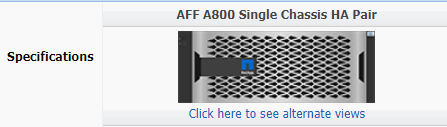
Beneath the graphic, select Click here to see alternate views. Choose the view that matches your configuration.
-
Check the the MySupportPoral site for newer drive and shelf firmware and Disk Qualification Package files.
If your node or shelf does not have the latest versions, update them before installing the new drive.
Drive firmware is automatically updated (nondisruptively) on new drives that do not have current firmware versions.
-
Properly ground yourself.
-
Gently remove the bezel from the front of the platform.
-
Identify the correct slot for the new drive.
The correct slots for adding drives vary depending on the series model and ONTAP version. In some cases you need to add drives to specific slots in sequence. Whereas, in an ETERNUS AX2100 you add new drives to the next empty slots running from the outside towards the middle of the shelf. -
Insert the new drive:
-
With the cam handle in the open position, use both hands to insert the new drive.
-
Push until the drive stops.
-
Close the cam handle so that the drive is fully seated into the mid plane and the handle clicks into place. Be sure to close the cam handle slowly so that it aligns correctly with the face of the drive.
-
-
Verify that the drive’s activity LED (green) is illuminated.
When the drive’s activity LED is solid, it means that the drive has power. When the drive’s activity LED is blinking, it means that the drive has power and I/O is in progress. If the drive firmware is automatically updating, the LED blinks.
-
To add another drive, repeat Steps 4 through 6.
The new drives are not recognized until they are assigned to a node. You can assign the new drives manually, or you can wait for ONTAP to automatically assign the new drives if your node follows the rules for drive auto-assignment.
-
After the new drives have all been recognized, verify that they have been added and their ownership is specified correctly.
-
Display the list of disks:
storage aggregate show-spare-disksYou should see the new drives, owned by the correct node.
The new drives are ready. You can add them to a local tier, place them onto the list of hot spares, or add them when you create a new local tier.
